Use a numbered event, perhaps a quiz question. You’ll recognise “12” when it appears in the picture and when it appears beside the answers, even if those moments are a second or two apart. Chat timestamps won’t help here: they’re attached to messages travelling through another system.
A game animation calls for a different test. Understanding what is tower rush and how to play it involves the Build control, which starts a floor placement. Its response and the end of the animation provide two separate timing points. That documents action and animation timing, while the stream test stays focused on camera footage.
For streamed footage, find out when the panel is supposed to update. Some services attach timestamped data to the video so a question opens at the matching moment in playback. Viewers can then see the same pairing despite receiving the broadcast at different times.
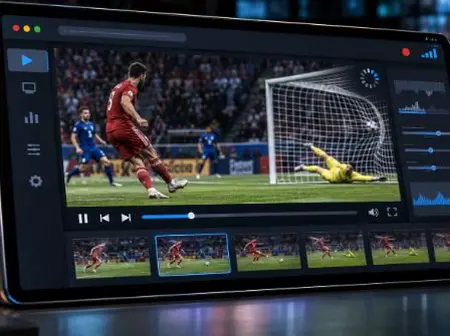
Set your recorder to capture the service window, with the panel next to the player. You’ll be able to take both timings from that one clip, so there’s no second recording to line up.
Find question 12 in the clip and pause when the number first changes in the answer panel. Note the clip’s playback time. Then move forward until that number appears in the video picture and take the other reading.
An illustrative log might look like this:
For question 12, the subtraction is 11.5 minus 10.0: the picture arrives 1.5 seconds later. A negative answer would mean that the picture arrived first.
To measure the delay from the original event, you’d also need a reliable timestamp at that event and a matching time reference locally.
A recording of a tower rush game session should show the action confirmation together with the animation, so support can compare them. A recorded result is a better reference than repeatedly pressing a control while waiting for the moving image to catch up.
Watch for a freeze, then measure the next matching event. If the gap grows after the picture stops but the panel keeps updating, note that sequence. Buffering can interrupt video playback while other page activity continues.
Record the last matched pair before the freeze and the first one after playback resumes. Keep all the footage between those points, so the person reviewing it can see what stopped and what the panel did while the video was stuck.
A hidden tab is another thing to rule out. Browsers sometimes delay its timers or suspend animation updates until you return. First take a reading with the window visible. Then switch away, come back, and check whether the offset changes.
Live casino video and round messages may follow separate delivery routes; an interface result can therefore arrive before the corresponding picture. Check the round identifier, where shown, and measure that same result in both views. A betting timer needs its own timing explanation before it serves as a comparison.
Save the first measurement before trying a fix. Let playback settle before measuring again after a refresh or quality change. Then repeat the same comparison after each change:
Try another stream after a refresh. If it plays properly while the original keeps slipping, note which stream failed and which one worked. Keep the same device for that comparison; otherwise you’ve changed two things at once.
Send the clip with a short note: “Question 12 appeared in the panel at 10.0 seconds and in the video at 11.5.” Include the stream name and when you watched it, followed by your device and browser version.
Retain the first readings beside the retest. Say which setting changed and what happened afterwards. If trouble followed a tab switch, show that switch in the clip so support can try the same sequence.
Leave a Reply